Tuesday, 29 September 2015

Protect your privacy while you browse

0421 primary

It once sounded like paranoia; now it’s more like common sense. Steve asked for safe and secure ways to access the Internet without being tracked by crooks, corporations, and governments.
There’s no such thing as complete, 100-percent perfect privacy or security. The Heart bleed vulnerability made that patently clear. But you can lock down your Internet access, making a security breach much less likely.
I've already discussed email privacy, so I’ll concentrate here on secure web surfing.

Your browser’s privacy mode

Most browsers have a mode that allows you to visit sites without being tracked. There’s no history, and no cookies.
But you need to know these modes’ limits. The sites you visit will still see your router’s IP address. And your ISP still knows who you’re visiting. And what your ISP knows, the government can find out.
0421 firefox private browsing
Firefox's Private Browsing
Here’s how to enter privacy modes:
  • Internet Explorer: Select Safety>InPrivate Browsing.
  • Chrome: Click the menu icon in upper-right corner and select New incognito window.
  • Firefox: Tap Alt to bring up the browser’s menu. Select File>New Private Window.

Browser add-ins

The right tools can add layers of protection to your browser. Here are two free ones I recommend.
Ever hesitate to enter your real email address into a web form? With MaskMe installed in Firefox or Chrome, you can click on an email address field and have it provide a random, disposable address. Mail sent to that address will be forwarded automatically to your real address…until you tell MaskMe to stop forwarding it. If you’re willing to pay $5 a month or $45 a year for the premium service, MaskMe can also provide temporary credit card numbers.
0421 maskme
MaskMe offering an alternative email address
Another add-in, Ghostery, protects you from commercial spies who work in the background. Every time you load a webpage, it displays an annoying but revealing pop-up showing all the advertising and tracking services using that site. You can block services you don’t want.
I should mention that Ghostery’s parent company, Evidon, takes money from advertisers, creating a possible conflict of interest.

More complete disguises

All of these solutions still allow websites to see your IP address and allow your ISP to track your surfing habits. You can use a virtual private network (VPN), among other option, to hide your IP address. 
0421 tor
The Tor Browser
Or you can use the Tor Browser. This special browser, which always runs in privacy mode, routes its signal through a complex series of servers to hide where you’re really coming from. It’s about as safe as you can get on the web.
With these precautions, you should be reasonably safe.

Sunday, 27 September 2015

Introduction to backup

Introduction to backup

100026348

Not backing up is like not wearing a seatbelt. You can go months or even years without a problem, then disaster strikes and you're in serious trouble. Only a few hours before writing this article, I received an email from a reader who couldn't access his hard drive, which contained files vital to his business. His letter didn't even include the word backup.
It's a simple rule: Never have only one copy of anything.

You absolutely must backup your data files every day. And no, you don't have to copy each of those files every day. Any decent file backup program can do an incrementalbackup--copying only the files that have been created or changed since the last backup.
By data files, I mean your documents, photos, spreadsheets, songs, and so on. If you back up all of your Libraries, or everything in the Users folder, you should get all of these.
This is usually done as a file backup, because it backs up your files.
You might also consider backing up your system--Windows and your applications--although this isn't essential. Should some disaster render Windows unusable, you can always go through the long process of reinstalling the operating system, personalizing the settings, and reinstalling all of your programs (see Reinstall Windows Without Losing Your Data for details). But if you have a system backup, you can simply restore that in much less time and with much less effort.


The only way to reliably backup Windows is with an image backup--which creates a record of everything on the drive or the partition. You don't have to do this regularly. I back up the system four times a year (if I remember to do it).
Windows 7 and 8 both come with decent backup programs capable of both file and image backups. I prefer the free version of Easeus ToDo Backup, which is more versatile and also does both.


What do you back up to? External hard drives are reasonably cheap and fast, and are clearly the best options for the two programs I just recommended.
But you might want to consider online services that will back your files up to the cloud. Online backup puts a great deal of physical distance between your computer and the backup--the same fire, flood, or burglar won't deprive you of both. But it's slower and, in the long run, more expensive.

Friday, 25 September 2015

How to recover deleted files

0505 primary

Lost files can usually be recovered—if you discover the loss soon enough. But every time you write to the hard drive, you lower the likelihood of a successful recovery. So use that computer as little as possible until the files are recovered or you’ve given up hope.


Try these solutions, in this order:

Check the Recycle Bin


0505 recycle

Windows stores “deleted” files here as a safety measure. You’ll find the icon in the upper-left corner of your screen. if you find the files there, select them, right-click them, and choose Restore.

Use your backup

If you back up your hard drive—or at least your libraries—on a regular basis, your files are probably preserved there. I don’t know which backup program you use, so I can’t tell you exactly how to search for and recover the files. It’s generally a pretty intuitive process.
And if you don’t back up, maybe it’s time to get into the habit. It won’t help you this time, but it could the next.

Try file recovery software

Even a file that’s no longer in the Recycle Bin may still exist. Windows doesn’t overwrite the actual ones and zeros until another file needs the drive space. That’s why I told you to avoid using the PC as much as possible.


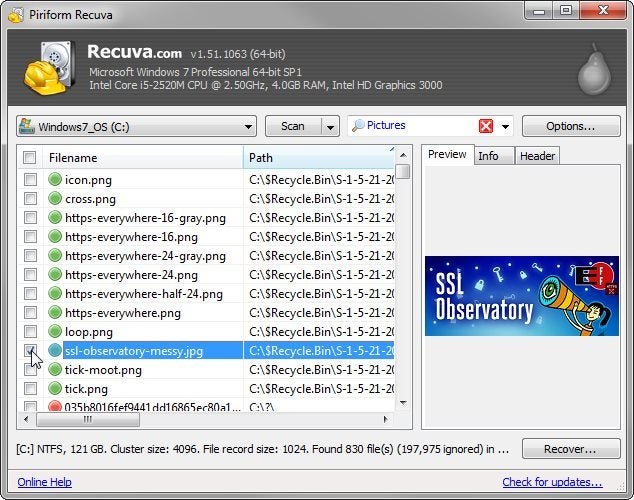
There are several good file recovery programs available. I recommend Recuva Portable. It’s easy to use and has a very good track record. And it sometimes shows you the images that it can recover. (I’ve seen it recover images that it could not preview.) It’s also free.

0505 recuva

And, since it’s portable, which means that you don’t have to install it, you can use it on your PC without writing to the hard drive. Download the program on another computer, and unzip it to a folder on a flash drive. Then plug the flash drive into the PC with the missing files, and run it from there.

Hire a professional

This is the last resort, if none of the above suggestions work. There are many data recovery services available, and since your drive is still working, you probably don’t need one of the more expensive ones.
I’ve never used one of these services, so I can’t recommend a particular company. A PCWorld visit to the nearby DriveSavers shows you what one such company is like. Ask friends for a recommendation, or find someone local on Yelp.

Wednesday, 23 September 2015

Attack of the Blue Screen of Death

You're working on an important project, and suddenly your screen is filled with seemingly incoherent white text against a blue background. There's nothing you can do but reboot your PC and hope that everything important was saved to your hard drive.
Microsoft calls these stop errors, but everyone else prefers a more descriptive label: The Blue Screen of Death (BSoD).
They're not as common as they used to be, but BSoDs still happen (I experienced one two days ago as I write this). If you get one, curse, reboot, and hope for the best. But if you're getting them frequently, you've got a problem that needs fixing.
The trick is to find information about your particular BSoD, and then--since that information usually comes in an obtuse form--search the Internet for more practical advice.
What should you look for when the BSoD is in front of you? You'll find useful data immediately below the first paragraph, and under the "Technical information" label near the bottom of the screen. I've highlighted those areas on the image below.


Since you can't use Windows' Snipping Tool to capture a BSoD screen, you'll need to write down the important information on paper.

Click for full image
Or you can use a camera or phone to photograph the screen. Just don't expect a great-looking photo--or even an easily readable one.


You can also get information on the BSoD after you've rebooted:
If you get a "Windows has recovered from an unexpected shutdown" message, you're in luck. Click View problem details for technical information.


You can also click Check for solution, but don't expect much help there. In my experience, this button rarely does anything.


You can also get information, after rebooting, via the free and portable programBlueScreenView. This lists all of your recent BSoDs and offers the needed info.


However you get the info, intelligent use of a search engine can probably bring up something useful.

Tuesday, 22 September 2015

Computer network expained


A computer network is a telecommunications network that enables sharing of resources and information. Nodes in a network are connected with each other using either cable or  wireless media and use a system of digital rules for data exchange. Data is transferred in the form of a packet, a formatted unit of data.
Since you are reading this on the Internet, your computer is a part of the biggest network in the world – the Internet. If you have access to the Internet at home, your devices  are part of a LAN (Local Area Network). Here is how a simple LAN looks like:

In the picture above you can see that the computer is connected to the router which is then connencted to the Internet. The computer can send and receive data on the Internet using Internet protocols such as HTTP and DNS.
To connect two computers together, we would use a device called a switch. Switches serve as a central point to which all computers on a network connect to: